Quick Start
Connect the scanner to a microcontroller over UART, install the library, and print every barcode you scan.
You program the controller connected to this breakout. The breakout itself is not flashed.
Switch the scanner to UART first. The scanner ships in USB mode, and in
that mode it does not answer on RX and TX. Scan the POR232 (TTL/RS232)
configuration barcode once to switch it to UART. The Arduino library's
repository has a file named
TTL-Mode.PNG
in its barcodes folder.
The header pins use 3.3 V logic. When you power the board from the
controller's header instead of USB-C, use the controller's 3.3 V pin and
never connect 3V3 to 5 V.
- Arduino
- MicroPython
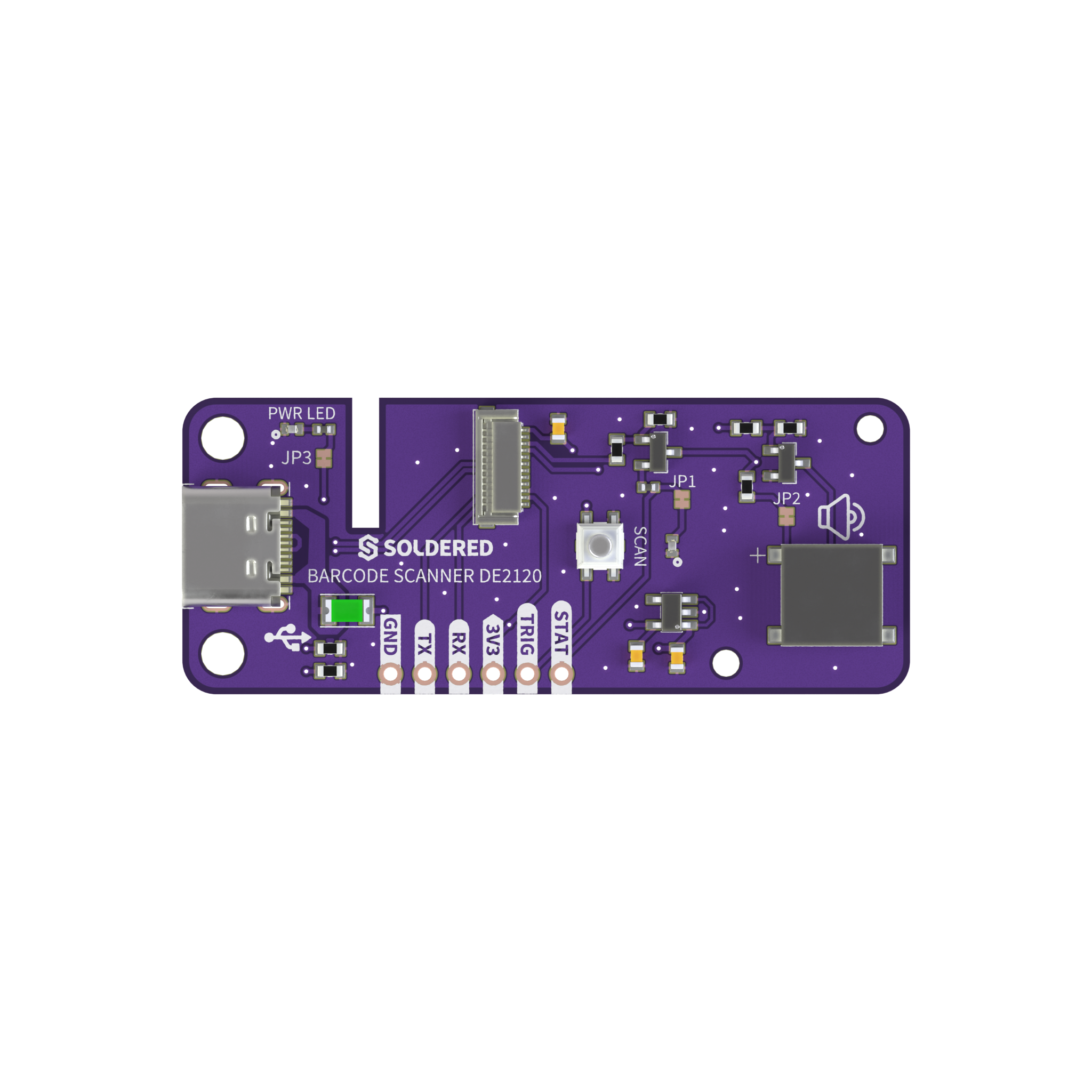
1. Connect the breakout board
This example is written for an ESP32 board: it talks to the scanner through
the ESP32's hardware UART2 (HardwareSerial(2)) on GPIO4 and GPIO5. Cross the data lines: the
controller's TX goes to the scanner's RX, and the scanner's TX goes to the
controller's RX.
| Controller | Soldered Barcode Scanner DE2120 |
|---|---|
GPIO5 (TX) | RX |
GPIO4 (RX) | TX |
3V3 | 3V3 |
GND | GND |
2. Install the library
Install Soldered DE2120 from its GitHub repository.
🔗Soldered DE2120 Arduino library
Verified Arduino library at commit 697eb25
Tip: downloading from GitHub. On the library's GitHub page, click the green Code button and choose Download ZIP, then add it in Arduino IDE with Sketch → Include Library → Add .ZIP Library....
The library includes SoftwareSerial.h, so a SoftwareSerial library has to be
installed even when your sketch uses a hardware UART. The library's examples
point to the Arduino Library Manager for it.
3. Run the first example
Open HardwareScan from the library's examples, select your ESP32 board and
port, and upload it. The sketch starts the ESP32's UART2 on GPIO4 (RX) and
GPIO5 (TX), finds the scanner, and prints every code it reads.
/**
 **************************************************
 *
 * @file        HardwareScan.ino
 * @brief       Scan and output barcodes using the DE2120 1D/2D barcode
 *              scanner module over HardwareSerial (UART2) on ESP32.
 *
 *              Unlike SoftwareSerial, HardwareSerial uses a dedicated
 *              UART peripheral for reliable communication at 115200 bps.
 *              The library will automatically negotiate the baud rate
 *              down to 9600 bps on first connect.
 *
 *              Default wiring: GPIO4 = RX (scanner TX),
 *              GPIO5 = TX (scanner RX). Change the pin arguments in
 *              scannerSerial.begin() to match your wiring.
 *
 *              The scanner must first be put into TTL/RS232 mode by
 *              scanning the POR232 barcode from the DYScan settings
 *              manual before uploading this sketch.
 *
 *              Make sure you have SoftwareSerial library installed. It
 *              can be found in Arduino library manager.
 *
 * @authors     Fran Fodor @ soldered.com
 ***************************************************/

#include "HardwareSerial.h"
HardwareSerial scannerSerial(2); // Use UART2

#include "DE2120-SOLDERED.h"
DE2120_Soldered scanner;

#define BUFFER_LEN 40
char scanBuffer[BUFFER_LEN];

void setup()
{
  Serial.begin(115200);
  Serial.println("DE2120 Scanner Example");

  scannerSerial.begin(115200, SERIAL_8N1, 4, 5); // RX=GPIO4, TX=GPIO5
  delay(500);

  if (scanner.begin(scannerSerial) == false)
  {
    Serial.println("Scanner did not respond. Please check wiring. Did you scan the POR232 barcode? Freezing...");
    while (1);
  }
  Serial.println("Scanner online!");
}

void loop()
{
  if (scanner.readBarcode(scanBuffer, BUFFER_LEN))
  {
    Serial.print("Code found: ");
    for (int i = 0; i < strlen(scanBuffer); i++)
      Serial.print(scanBuffer[i]);
    Serial.println();
  }
  delay(200);
}
4. Check the result
Open the Serial Monitor at 115200 baud. When the scanner answers, you see:
DE2120 Scanner Example
Scanner online!
The scanner starts in manual mode, so press the trigger button on the board and
point it at a barcode. Each code it reads prints on its own line as
Code found: followed by the code's contents.
If you see Scanner did not respond. Please check wiring. Did you scan the POR232 barcode? Freezing...
instead, the scanner is still in USB mode or RX and TX are swapped.
5. If it does not work
Continue with Troubleshooting and retry this smallest example after each change.
1. Connect the breakout board
The module's examples use pin 5 as the controller's TX and pin 4 as its RX.
Given only tx and rx, the module opens UART(1) on those pins; pass
uart_id to use another UART. Cross the data lines: the controller's TX goes
to the scanner's RX, and the scanner's TX goes to the controller's RX.
The example was tested on two Soldered NULA boards, NULA Mini ESP32-C6 and NULA DeepSleep ESP32-S3, running MicroPython v1.24.1.
| Controller | Soldered Barcode Scanner DE2120 |
|---|---|
| Pin 5 (TX) | RX |
| Pin 4 (RX) | TX |
3V3 | 3V3 |
GND | GND |
2. Install the module
After installing the mpremote package, install the library on your board using the following command:
mpremote mip install github:SolderedElectronics/Soldered-DE2120-MicroPython-Library
Or, if you're running a Windows OS:
python -m mpremote mip install github:SolderedElectronics/Soldered-DE2120-MicroPython-Library
🔗Soldered DE2120 MicroPython library
Verified MicroPython module at commit 848e03e
Tip: downloading from GitHub. Without mpremote, open the module's .py
file on GitHub and click Download raw file, then open it in Thonny and use
File → Save as... → MicroPython device to copy it onto the board.
3. Run the first example
This is the module's de2120-readBarcode.py example. It creates the scanner on
pins 5 and 4, checks that it answers, and prints every code you scan. Change
tx and rx if you wired other pins.
from machine import UART
from de2120 import DE2120
import time

# Adjust tx and rx to match the pins you have wired on your board.
scanner = DE2120(tx=5, rx=4)

if not scanner.begin():
    print("DE2120 not detected. Check wiring.")
    raise SystemExit

print("DE2120 ready. Press the button on the scanner to read a barcode.")

while True:
    barcode = scanner.readBarcode()
    if barcode:
        print("Scanned:", barcode)
    time.sleep_ms(20)
🔗Open the complete example
Examples/de2120-readBarcode.py at commit 848e03e
4. Check the result
When the scanner answers, the shell shows:
DE2120 ready. Press the button on the scanner to read a barcode.
Press the trigger button on the board and point it at a barcode. Each code it
reads prints as Scanned: followed by the code's contents. If the shell shows
DE2120 not detected. Check wiring. instead, the scanner is still in USB mode
or RX and TX are swapped.
5. If it does not work
Continue with Troubleshooting and retry this smallest example after each change.