Quick Start
Connect the board with a Qwiic cable, install the Arduino library and run its LED example. The three RGB LEDs light up in turn, which shows the whole chain is working.
You program the controller connected to this breakout. The breakout itself is not flashed.
- Arduino
1. Connect the breakout board
Plug a Qwiic cable into either Qwiic connector on the board and into the Qwiic connector on your controller. No soldering needed. The cable also brings the board its 3.3 V supply, and the second Qwiic connector is free for the next Qwiic board.
| Controller | Soldered Button, LED & Buzzer Board with Qwiic |
|---|---|
| Qwiic connector | Either Qwiic connector |
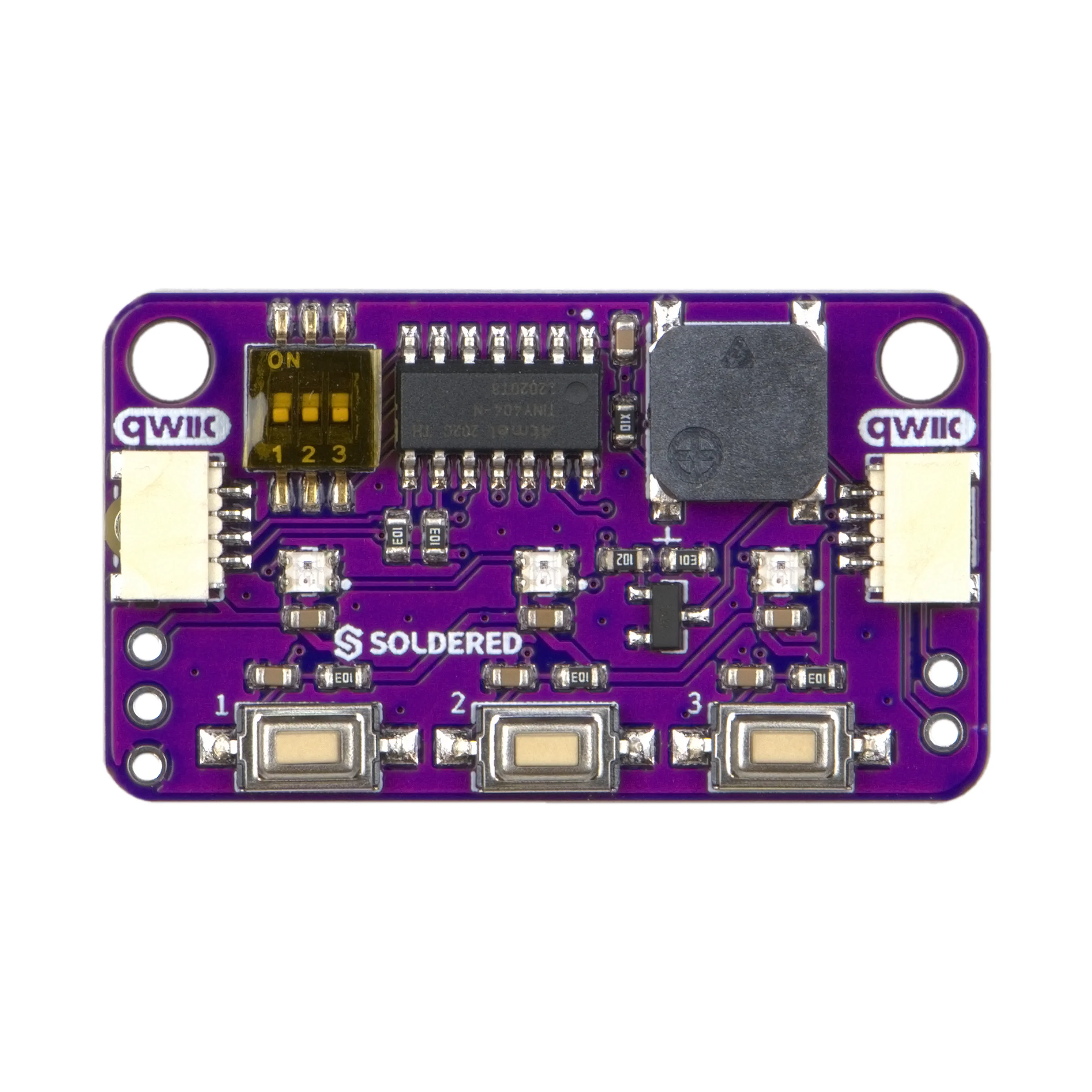
The examples were written for an ESP32 host and call Wire.begin() without
any pins. Without Qwiic, the comment in each sketch shows how to pass your
own pins, for example Wire.begin(21, 22) on that ESP32.
2. Install the library
Install Soldered-Button-LED-Buzzer-Board by downloading it from its GitHub repository and adding the ZIP in Arduino IDE (see the tip below).
🔗Soldered-Button-LED-Buzzer-Board
Verified Arduino library at commit 0f98a29
Tip: downloading from GitHub. On the library's GitHub page, click the green Code button and choose Download ZIP, then add it in Arduino IDE with Sketch → Include Library → Add .ZIP Library....
3. Run the first example
This is LEDs.ino, the library's own example. It lights each LED in red,
green and blue, then all three together.
/**
 **************************************************
 *
 * @file        LEDs.ino
 * @brief       LED test for Soldered Button, LED & Buzzer Board
 *              Host: ESP32 WROVER-E
 *
 * Cycles each LED through red, green, blue individually,
 * then cycles all LEDs together.
 *
 * @authors     Fran Fodor @ soldered.com
 ***************************************************/

#include "ButtonLedBuzzerBoard-SOLDERED.h"

ButtonLedBuzzerBoard_Soldered board;

void setup()
{
    Wire.begin(); // if not using Qwiic, specify I2C pins: Wire.begin(21, 22)
    board.begin();
    delay(2000);

    board.setAllLEDs(0, 0, 0);
}

void loop()
{
    // Test each LED individually
    for (uint8_t i = 0; i < 3; i++)
    {
        board.setAllLEDs(0, 0, 0);
        board.setLED(i, 255, 0, 0); delay(400); // red
        board.setLED(i, 0, 255, 0); delay(400); // green
        board.setLED(i, 0, 0, 255); delay(400); // blue
    }

    // All LEDs together
    board.setAllLEDs(255,   0,   0); delay(500); // red
    board.setAllLEDs(  0, 255,   0); delay(500); // green
    board.setAllLEDs(  0,   0, 255); delay(500); // blue
    board.setAllLEDs(255, 255, 255); delay(500); // white
    board.setAllLEDs(  0,   0,   0); delay(500); // off
}
4. Check the result
There is no serial output. About two seconds after the upload, LED 0, then LED 1, then LED 2 shows red, green and blue for 0.4 s each. Then all three LEDs show red, green, blue and white together for 0.5 s each and switch off for 0.5 s, and the cycle starts again.
Set the LED colours explains every function the sketch uses.
5. If it does not work
Continue with Troubleshooting and retry this smallest example after each change.